
Getting started
How to create a custom folder icon
Use the editor to combine a folder style, color, symbol or image, and optional text. The complete process takes only a few minutes and happens locally in your browser.
Updated July 19, 2026
1. Choose the destination platform
Select macOS, Windows, KDE, or GNOME before designing. You can also upload a PNG, WebP, SVG, or JPEG to use as the base folder. This changes the artwork and makes the recommended download format match the platform.
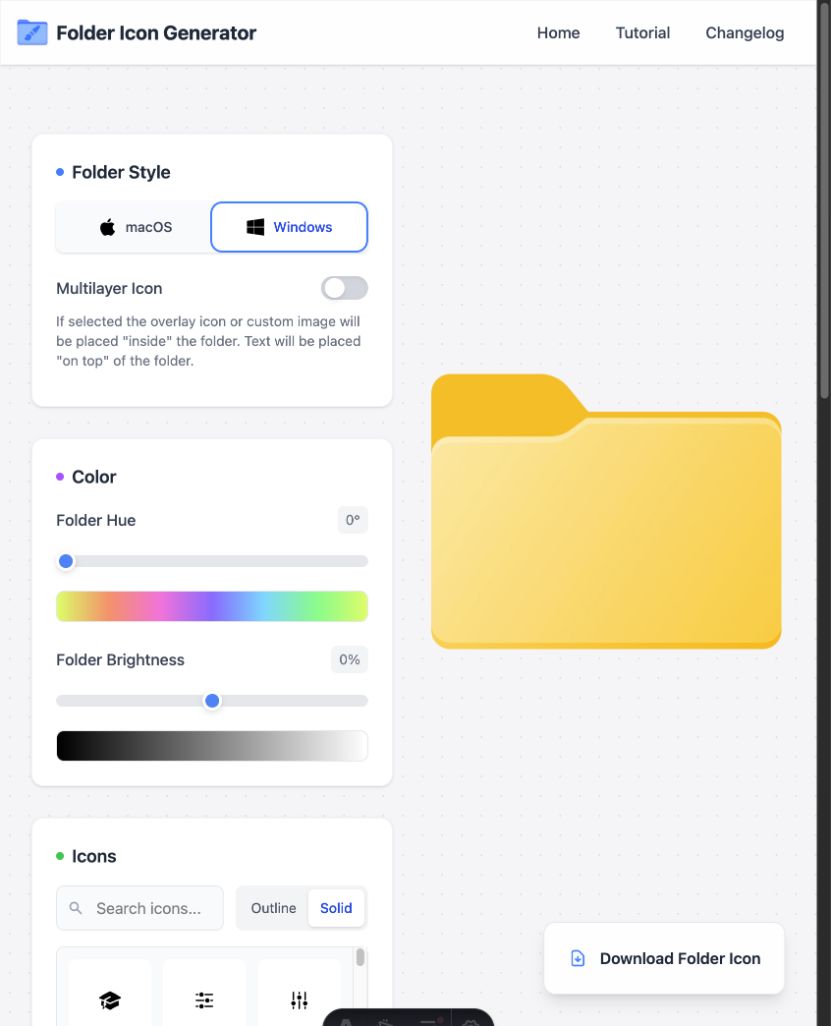
2. Adjust the folder color
Move the hue control to select a color, then use brightness to make the folder lighter or darker. Keep enough contrast between the folder and any overlay so the finished icon remains recognizable at small sizes.
3. Add a symbol or your own image
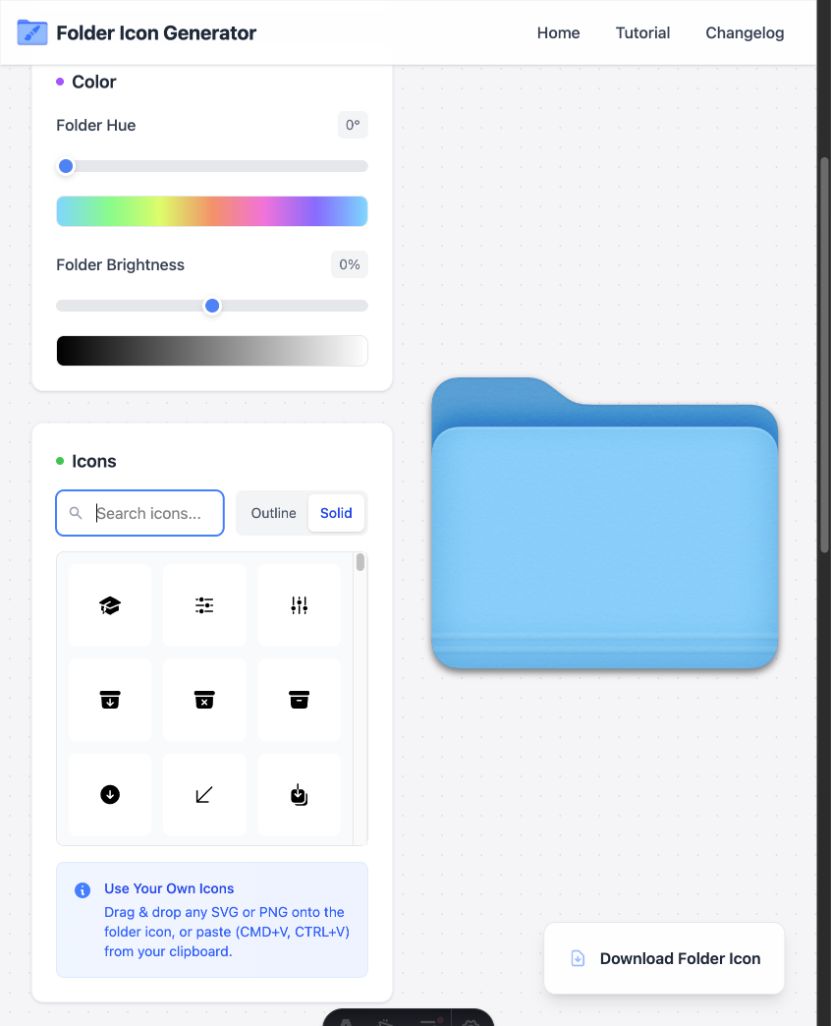
Search the built-in icon library, switch between solid and outline styles, and click a symbol to place it on the folder. You can also drag a PNG or SVG onto the canvas, or paste an image with Command V on Mac or Ctrl V on Windows.
Use icon size, opacity, and blend mode to fit the overlay into the folder. Enable the multilayer option when the image should appear inside the front and back parts of the folder.
4. Add a short text label
Text works best when it is brief: a project code, year, client abbreviation, or one-word category. Choose a font and weight, then adjust size, opacity, and blend mode. Drag the text on the preview to position it.
5. Download the correct file
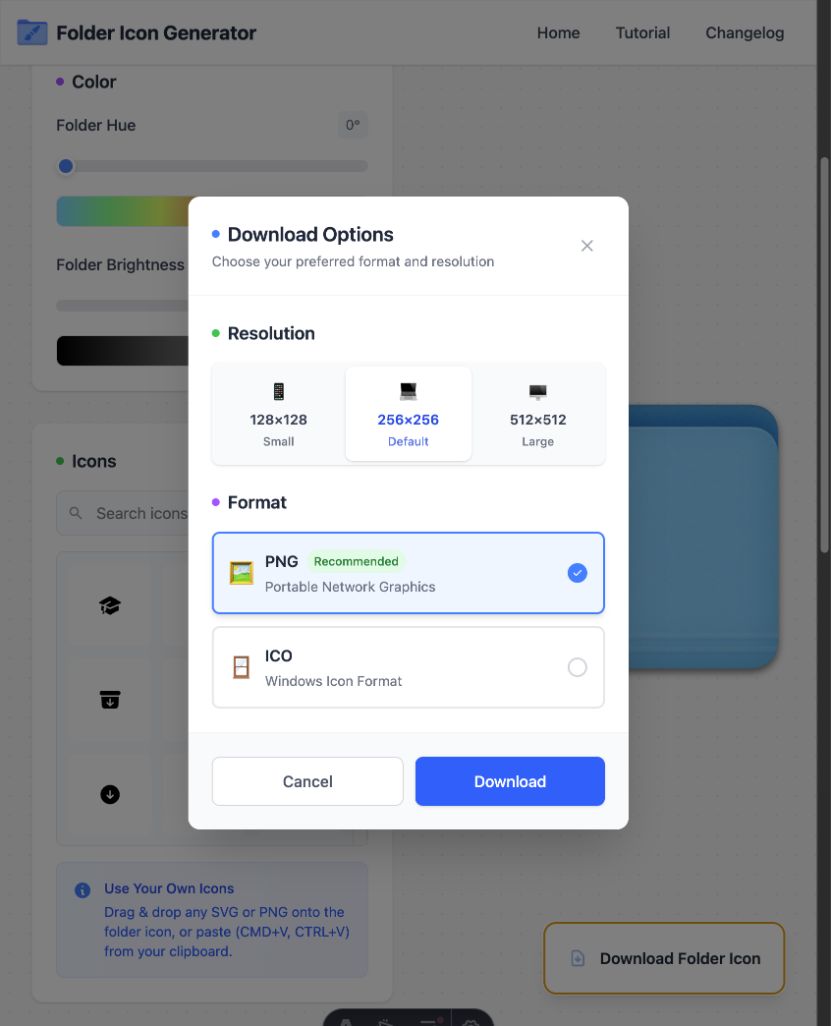
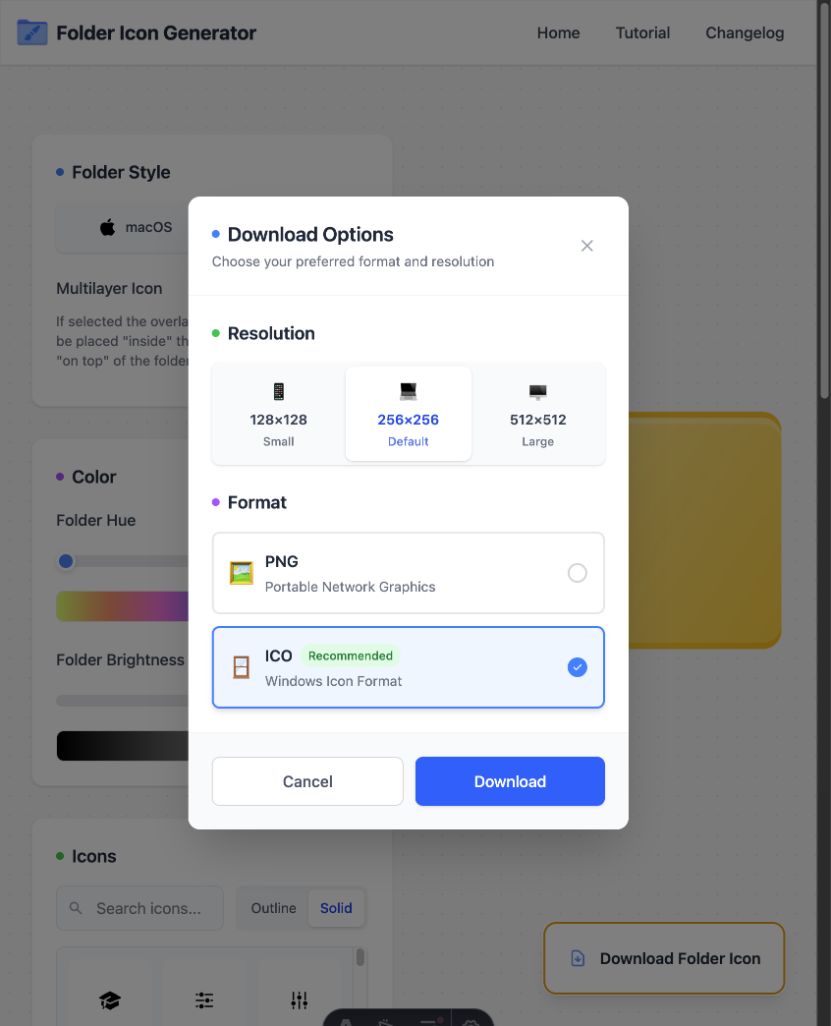
Click Download Folder Icon and choose a resolution. Use 256×256 for most folders or 512×512 when you want the highest-quality source.
For macOS
Download PNG. Finder can use the copied image as a custom file or folder icon.
For Windows
Download ICO. Windows requires an icon file when using the Change Icon dialog.
For Linux
Download PNG. How you assign it depends on your desktop environment, file manager, and icon theme.
Privacy: pasted and dropped images are processed by the browser. You do not need to upload them to an account or remote workspace.
Create the icon in your browser
No account is required, and images stay on your device.