
Windows 11 guide
How to change a folder icon in Windows 11
Windows uses ICO files for custom folder icons. Create or convert the artwork first, then assign the file from the folder's Customize settings.
Updated August 10, 2026
Before you start
Use a normal folder that you own, such as a folder inside Documents or on the Desktop. Some system folders, library views, network paths, and managed work devices can hide the Customize tab or block icon changes. Testing one local folder first helps separate a file problem from a Windows rights or policy problem.
Create a permanent folder for custom icons before you apply anything. Windows keeps a link to the ICO path, so the file must remain available after the design work is done.
Create a Windows folder icon
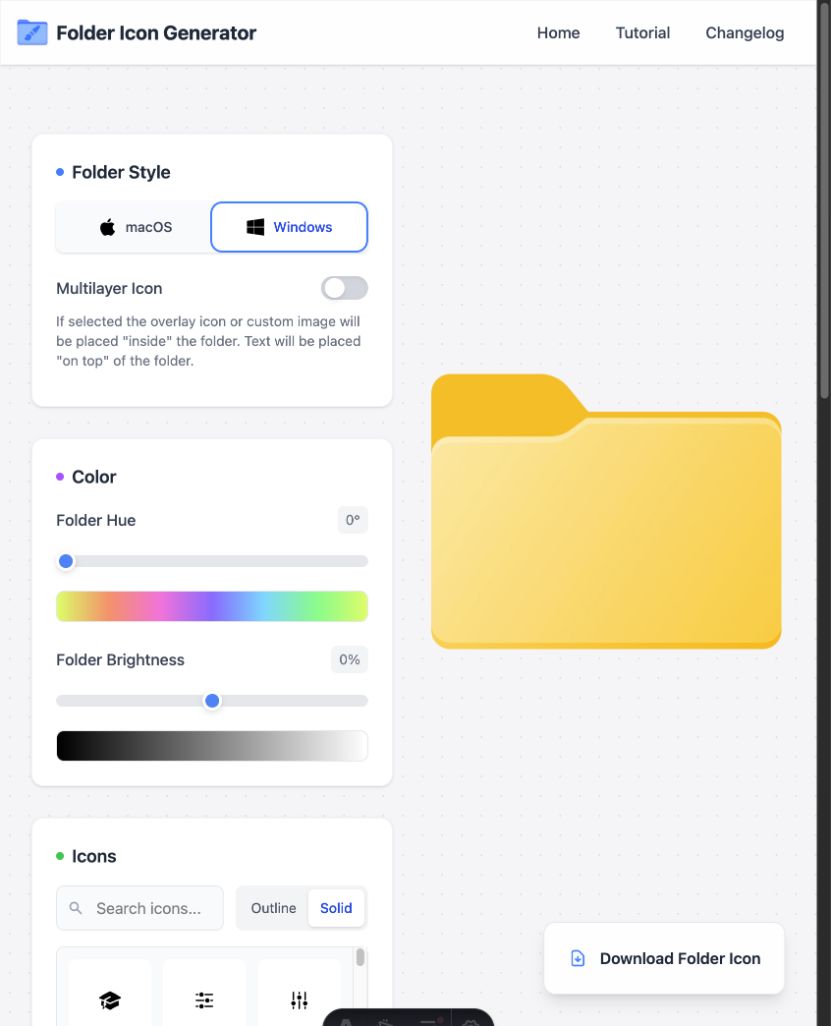
- Open FolderIcon.App and select Windows.
- Adjust the folder hue and brightness.
- Add a symbol, image, or short text label.
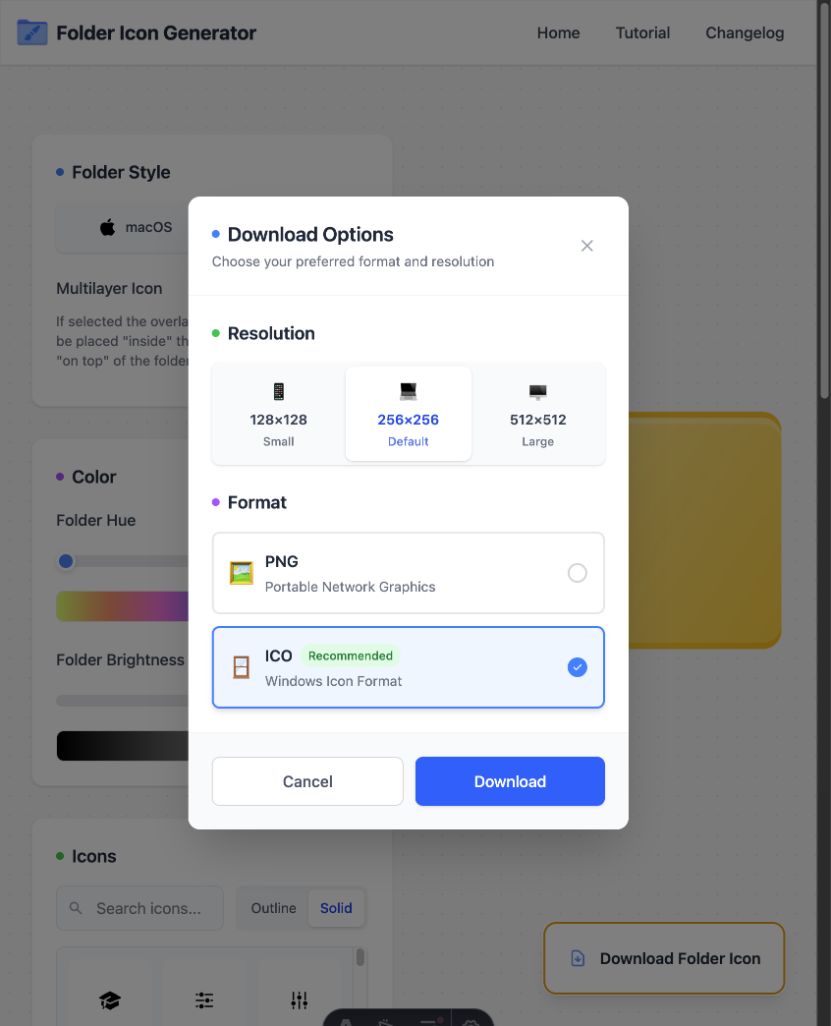
- Click Download Folder Icon.
- Select ICO and choose 256×256 or 512×512.
Apply the ICO file to a folder
- Move the ICO file to a permanent location. Do not leave it in Downloads if you regularly clear that folder.
- Right-click the folder you want to customize and choose Properties.
- Open the Customize tab.
- Select Change Icon, then Browse.
- Choose the downloaded ICO file and select Open.
- Select OK, then Apply.
Keep the ICO file at a stable path. If it is moved, renamed, or deleted, Explorer may lose the custom icon later.
Check the result in more than one view
Open the parent folder and switch between a list, medium icons, and large icons. A useful custom icon should keep its main symbol in each view. If text becomes hard to read or the mark blends into the folder, return to the editor and use a shorter label, a larger mark, or more contrast.
Windows may keep an old preview for a short time. Confirm the assigned file in Change Icon before you remake the artwork. If the dialog points to the right ICO, refresh Explorer with the steps below.
Restore the default Windows folder icon
Return to Properties → Customize → Change Icon, select Restore Defaults, and apply the change.
What happens if you move or share the folder?
The custom icon may not follow a folder to another PC because that computer may not have the same ICO at the same path. A moved folder can also lose the link if the icon file stays behind. Keep the ICO set with your backups, and expect to assign it again on a new device.
If Explorer still shows the old icon
- Close and reopen the parent folder.
- Refresh Explorer with F5.
- Temporarily select a different icon, apply it, and then select the intended ICO again.
- Restart Windows Explorer or sign out and back in if the cached thumbnail remains.
If the Customize tab does not appear at all, test a new local folder in Documents. If that folder works, the first item likely uses a special folder type, remote storage rule, or device policy that changes the available settings.
Create the icon in your browser
No account is required, and images stay on your device.